hilum

Basic training · 13 November 2026 · GPSEM and GPEOrq

Count and measure seeds with your own image.

Open, calibrate, count, check, measure and cite, in the browser, with nothing to install. Everything from the SeedCounter by Hilum training is here: the app, the slides, the manual videos, the practice images with ground truth, the image collection and the shortcut sheet. Keep this page: it stays online after the course and is updated here.

01 · App

Open SeedCounter in the browser

It works in Chrome or Edge, on a computer, with no installation and no sign-up. Open it and leave it open: the first time, it downloads the image models. Your images never leave your computer. The course version is 4.8.3, shown in the app footer.

If the main address does not open, use the backup sc.hilum.science. On a phone, hilum.science/contar opens the same app.

What the app does and what stays with you

The app counts and marks, measures in millimeters, proposes outlines and produces the report and the spreadsheet.

You decide what is viable, check the proposal, calibrate from the ruler and cite when you publish.

Signing in with a Google account is optional and keeps your counts. If the screen looks odd, Ctrl + Shift + R reloads everything.

02 · Slides

The slides from the session

The 32 training slides are in the course folder, in HTML (in Portuguese): download them and open with a double click in Chrome or Edge, even offline. The right arrow moves forward, F goes full screen.

03 · What we discussed

The ideas from the session, with real data

What the class argued for, organized into five series. Each idea comes with the number that backs it, measured again after the session, and the page on the site that goes deeper. The recorded class is being split into short episodes for YouTube, in this same order, and each episode points back here.

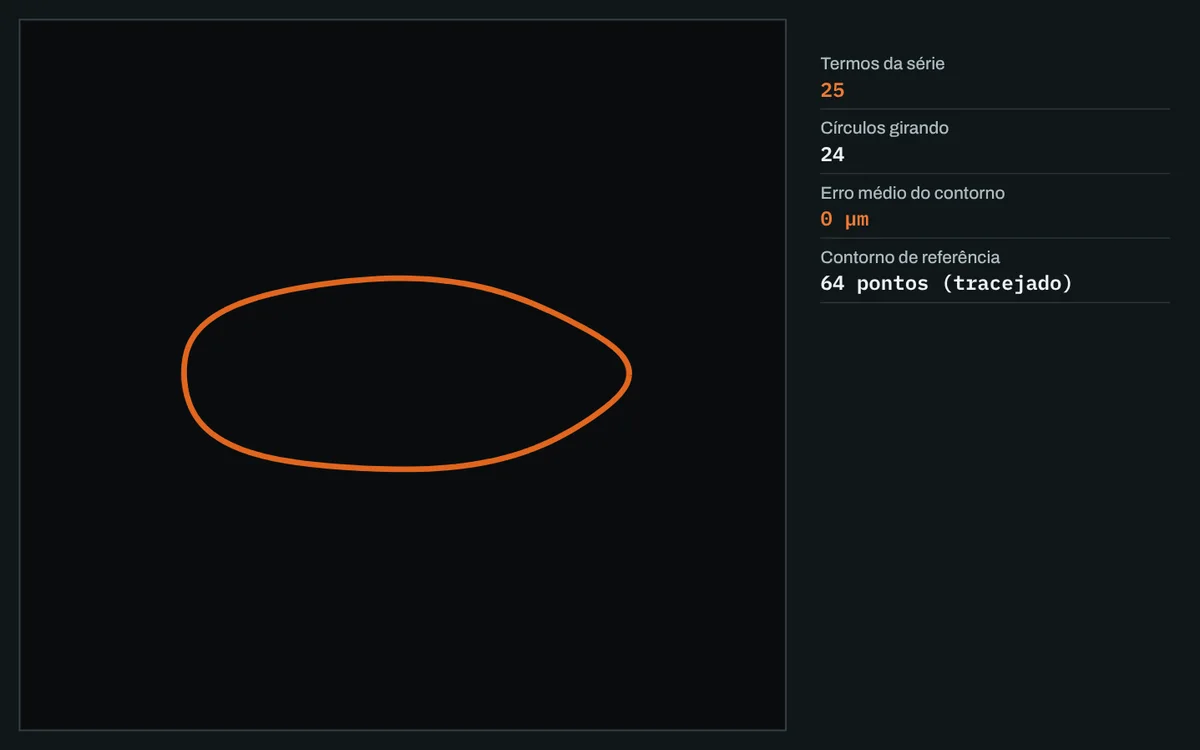
Real recordingreal data: the orchid model run three times on the kit slide, against the ground truth of 68 (Sementes de Orquídeas, Roboflow Universe, CC BY 4.0)
Real recordingreal data: the same 24 seeds and the same recipe in app 4.8.3, light background and dark background, checked against the ground truth (app examples, CC BY-SA 4.0)
Real recordingreal data: the same wheat photo from the kit, brightness threshold (Otsu) 27 of 27 and a universal segmenter 24 of 27 (seed detect, Roboflow Universe, CC BY 4.0)

Series 1

The machine proposes, the person checks

Why trust a count from an image?

  1. The morning person and the afternoon person

    At the peak of the season, whoever counts seeds one by one gets tired, and the afternoon count is not the morning count. The machine also makes mistakes, but always the same ones, and the mistake stays saved for someone to go back and fix.

    Orchid model run three times on the same kit slide: 70 proposals, 64 correct, the same 4 missed and the same 6 extra in all three runs.

    Every count gets checked
  2. Correcting is part of the method

    The recipe proposes the outline; you calibrate, remove chaff and dirt and add what was missed. You can photograph today and check calmly later, or ask someone else to check.

    Counting and checking in the manual
  3. Marking is enough to count

    To know how many there are, one click per seed does it. The drawn outline is for when you want to measure.

  4. Validate against the usual method

    Ground truth, calipers and replicates still count. Someone has to compare the image with them, crop by crop, and that is still open research.

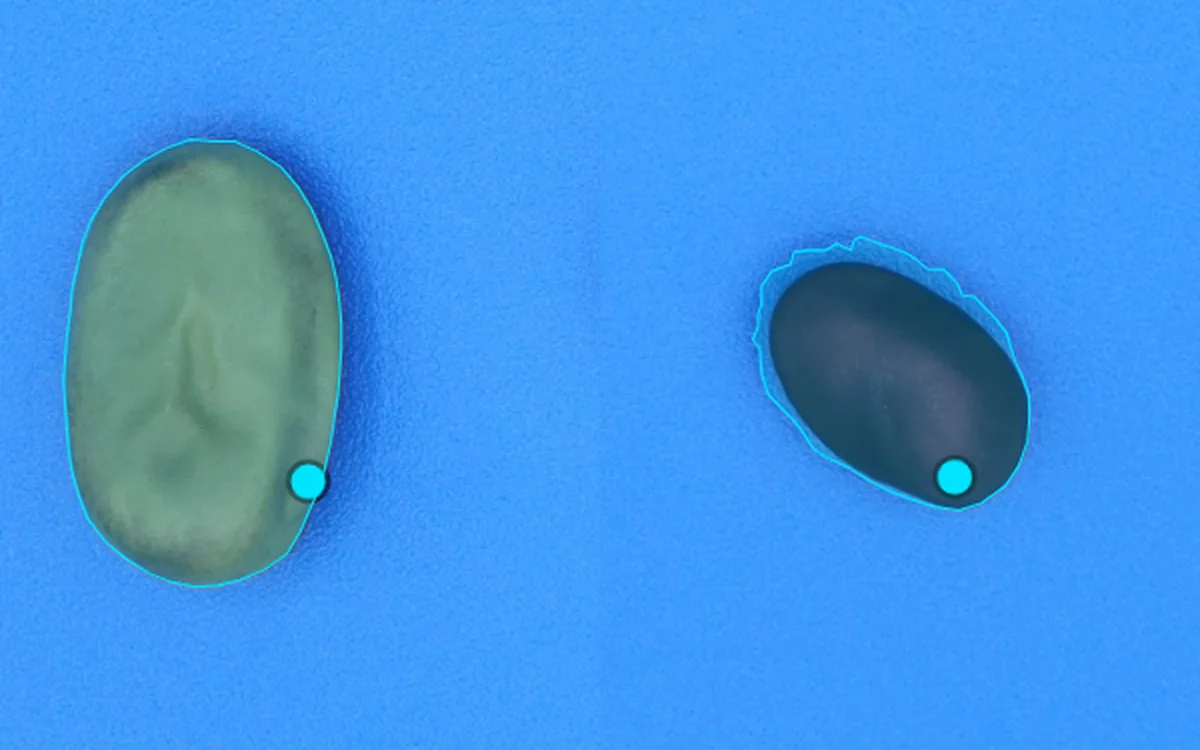
    Faba bean: SeedCounter measures 2.4% more than the authors' analyzer; PlantCV and pliman, 1.6% to 2.6%. Against the caliper, all of them sit 5 to 6% above.

    Agreement with the analyst
Series 2

How to photograph seeds to measure them

What changes the measurement before any software?

  1. The file's DPI can lie

    The DPI number stored in the file is not always the real one. A reliable scale comes from something of known size in the photo itself, at the same height as the seeds.

    Faba bean: two 1-inch readings taken by hand on the ruler in the photo come within 0.3% of the automatic reading.

    The DPI declares, the ruler measures
  2. You may be measuring the shadow

    With a dark seed, or light from the side, the outline wraps the shadow and the seed grows. Strong light from above blows out the color.

    Scanned soybean: the Default recipe proposes 23 outlines and picks up the shadow on some; Sensitive proposes 19, tight ones, with a mean area 2.4% smaller.

    Light decides the outline
  3. Same seeds, 15 or 22

    There is no universal background. Matte blue works on the scanner for almost everything; white reflects. Test your background with your seed before photographing the batch.

    The same 24 seeds, the same recipe: 15 correct on the light background and 22 on the dark one.

    Set up your bench
  4. A phone photo can measure too

    Put something of known size in the photo, a ruler or an object of 1 or 2 mm, and calibrate from it.

    Bench rules

Series 3

Not every seed needs AI

When to use AI and when the math is enough?

  1. Start with the hardest

    An orchid seed is smaller than 1 mm and comes by the thousands in each fruit. If you can count orchids, you can count almost anything larger.

    Orchid seeds in the freezer
  2. A sledgehammer to crack a nut

    A light, separate grain on a dark background is just math: a brightness threshold, like the curves tool in a photo editor. AI is for where the classic method cannot reach.

    Kit wheat: the brightness threshold finds 27 of 27; a universal AI segmenter finds 24 of 27.

    The threshold, step by step

Series 4

Where the counter came from

Why is the app the way it is?

  1. A real lab problem

    The question was what took up time in the routine, and the answer was counting seeds, hours a week. The app grew out of that and is tested in the lab, with the people who use it asking for changes.

    Who makes Hilum
  2. A basic kit anywhere

    A flatbed scanner or a magnifier with a camera, and the browser. The idea is that a seed bank far from a large lab can count and measure with the same care.

    What you need
  3. Fail cheap and learn

    First, brute force with paid annotation; then a model trained in an undergraduate thesis; finally, everything in the browser. Each stumble explains a choice in the app.

  4. Free for academic use, with citation

    SeedCounter is free for research and teaching and has a DOI. The code is not open; academic use asks for a citation.

    How to cite

Series 5

Data, science and the lab

What still belongs to the lab?

  1. What the app delivers

    It counts, marks classes, measures in millimeters when calibrated, proposes outlines, and produces a report and a spreadsheet with one row per seed.

    One video per feature
  2. What does not change

    The science stays the same: data must be annotated, tabulated and organized, with the image and the scale kept alongside.

    Lab guides
  3. The same object over time

    Counting the same plate every week, one photo a week, is common in biology. The app is being adapted for it, and germination over time is research in progress.

    Open problems

Step by step

The six steps of the basics

The same order as the slides. Each step has the rule that weighs most on the result and the manual videos that show how to do it.

  1. Open

    Five regions on the screen: open image and examples on the left, the image and the tools in the middle, the results on the right. The scroll wheel zooms, H pans, 0 fits to screen.

    Videos 01 and 07

  2. Calibrate

    The ruler measures; the file's DPI only declares. Drag from one centimeter to the next three times, on different stretches of the ruler. Less than 1% variation between readings and everything comes out in millimeters.

    Video 03 · practice 1

  3. Count

    One click per seed: V viable, cyan disc; I non-viable, magenta ring. Or run a recipe: what it proposes shows up dashed and only becomes data when you accept it.

    Videos 02, 04 and 10

  4. Check

    Look at the whole image: S on the seed that was missed, Delete outline on what is extra. With ground truth, "Load reference" puts the right count on top of yours, without erasing anything.

    Videos 09 and 25 · practice 2

  5. Measure

    A marked point counts; only an outline measures. S outlines, C adjusts, E erases. Each seed becomes a row with area, length and width, and the L × W chart separates shapes.

    Videos 05, 08, 23 and 24

  6. Export and cite

    Ctrl + S saves the session. PDF report, annotated image and per-seed spreadsheet. Published? Cite with the DOI.

    Videos 06, 07 and 27

From the bag to the report

  1. Samplea coded bag, which goes along to the end
  2. Photomatte background, ruler on the same plane
  3. Proposalrecipe, calibration, count
  4. CheckS on what was missed, delete what is extra
  5. Reporta number with an owner: it carries who checked it

The machine saves time on the proposal and the report. The check is yours.

04 · Manual in video

One feature per video, in a minute

Twenty-six short episodes, without narration, with captions (in Portuguese) and the keys highlighted, recorded in the real app with real seeds. They are in the course folder, under "Manual em vídeo", in horizontal and vertical versions. Episode 21 (soybean, whole or damaged) is still in preparation.

The basics

  1. 01First steps: profile, regions, zoom and the View menu
  2. 02Counting viable and non-viable seeds with V, I and the right button
  3. 03Calibrating from the ruler with three readings
  4. 04Running the recipe, accepting and marking by hand the ones it missed
  5. 05Measuring: Seeds tab, biometrics and distance by hand
  6. 06Saving and exporting: PDF report, annotated image and spreadsheet
  7. 07Google account and how to cite the app
  8. 08Outlining with one click and adjusting the outline

Practice with ground truth

  1. 09Checking the count against the ground truth
  2. 10Which recipe for which scene: Featured scenes
  3. 11Orchid: tetrazolium marked by hand
  4. 12Rice purity: pure seed and impurity
  5. 13Forage grass: what the recipe misses
  6. 20Wheat: measuring grain by grain
  7. 22Opening a dataset folder

Advanced

  1. 14Teaching the recipe on a region and using it on the batch

Other crops

  1. 15Peanut: counting and marking mold
  2. 16Durum wheat: measuring and sorting
  3. 17Soybean pods: when the recipe does not work
  4. 18Faba bean with a ruler: calibrating, defining the field and measuring
  5. 19Beans: one seed, a pile and in bulk

Scenes with ground truth

  1. 23Coffee: four roasts, counting and measuring
  2. 24Rice: five cultivars by shape
  3. 25Soybean: closing the score with S and Delete outline
  4. 26Light or dark background: the same mixture
  5. 27Saving and comparing in the Statistics tab

05 · Practice with ground truth

Practice with the answer beside you

Real images with the right count known. You count first, load the reference on top and see right away what you got right, what you missed (amber), what was extra (×) and the F1. The three exercises from the session, to redo at home:

P1 · 10 min

Calibrate from the ruler

Kit image pratica-calibrar-regua-orquidea.jpg. Three 1 cm readings on different stretches. Ours gave 1,881, 1,905 and 1,897 px: a variation of 0.65%, below 1%.

Video 03

P2 · 15 min

Count and check

Real examples › With ground truth › Five mixed crops. Run the recipe, correct with S and Delete outline, load the reference. Write down the time, correct, missed and extra. The same recipe gives F1 0.73 on the light background and 0.90 on the dark one.

Videos 09 and 25

P3 · 30 min

Pick by your seed

Orchid in tetrazolium by hand (V on a red, whole embryo, I on a white or stained one), forage grass (what the recipe misses), wheat (measuring grain by grain) or rice purity.

Videos 11, 13, 20 and 12

  1. Download the kit folder

    In the course folder, the "kit" folder (or the .zip). Unzip it on your computer.

  2. Open it from the Datasets panel

    In the app, right panel › Datasets › open the dataset folder, and choose the kit folder. The browser does not remember the folder: choose it again each time.

  3. Count and check

    Open the image, count your way and use "Load reference" to put the ground truth on top.

68Orchid in tetrazolium58 viable and 10 non-viable: read the color of the embryo
27Wheatcount and measure grain by grain
40Rice puritypure seed and impurity

In the app, Real examples › With ground truth has six more scenes: five crops on light and dark backgrounds, rice, coffee, soybean and forage grasses. Kit images: Roboflow Universe, CC BY 4.0.

06 · Collection

Images to practice on, by crop

Eighteen folders of images by crop, to practice after the course. The number of seeds in each image is at the end of the file name: _n24 means 24 seeds. Open it in the app, count and compare with the number in the name. The folder "o que não fazer" (what not to do) shows photos that fool the count, on purpose.

07 · Shortcuts

The shortcut sheet

A one-page PDF (in Portuguese) to print and keep next to the keyboard, with the app's QR code. It is in the course folder.

V I
viable and non-viable
Ctrl + click
flips the class
S
outlines with one click
C
adjusts the outline
E
erases mark and outline
R
ruler: measure distance
H 0
pan and fit to screen
Ctrl + Z / S
undo / save

08 · Questions from the group

What people asked in practice

The questions that came up with the app open on the bench, with the answer reviewed after the session.

Do I need to draw the outline of every seed?

Not to count. One click per seed is enough, and the total comes out right away. The outline is for measuring area, length and width, and that is where the calibrated scale comes in.

What is saving the session for?

The app writes a small file with the calibration, the equipment and the settings. With it you do not calibrate again and you can carry on on another computer.

Does the notes field go into the spreadsheet?

It does. What you write in the notes goes out with the export.

I took the photo with my phone. How do I give it a size?

Put something of known size in the photo, a ruler or an object of 1 or 2 mm, on the same plane as the seeds, and calibrate from it under Calibrate scale.

In the tetrazolium test, does the app recognize the red and say whether the seed is viable?

No. The app separates the seed from the background and measures the color, but reading viability is the analyst's job: you mark viable and non-viable, and the percentage comes from your marks. Assisted tetrazolium reading is research in progress, not yet a feature of the app.

Is SeedCounter open source?

No. It is free for research and teaching, runs in the browser and has a DOI to cite. The code is closed.

09 · Bench

How to photograph so the count comes out right

The photo decides half of the result. With the same seed mixture, the recipe found 15 of 24 on the light background and 22 of 24 on the dark one.

  1. A matte background of one color

    Blue EVA foam works well for almost every seed. Avoid shiny tables and white paper.

  2. Ruler on the plane of the seeds

    At the same height as them, not on top of something else. It is what turns pixels into millimeters.

  3. Seeds spread out

    Not touching each other and away from the edge of the photo.

  4. Two lights at 45°

    One on each side, ideally with a sheet of white paper in front, so they do not cast long shadows.

  5. Camera parallel to the table

    A phone on a stand, always at the same height. A flatbed scanner also works, and is the most repeatable.

10 · Cite

Used it in your work? Cite it

SeedCounter is free for research and teaching. In a thesis, dissertation, article or poster, cite the software and the version.

DOI

10.5281/zenodo.23707217

Sonvenso Ambrosio, E.; Custódio, C. C.; Machado-Neto, N.; de Oliveira Vidotto Figueiredo, M. SeedCounter by Hilum. Zenodo.

11 · Research

Six open problems

Questions that image-based seed analysis has not answered yet and that you can research with Hilum. If one of them becomes your project, write to us.

  1. Validate against the official method. Count and percentage of viable seeds side by side with analysts and with the Brazilian Rules for Seed Testing.
  2. Species with no public dataset. Tropical forage grasses, native species and orchids, with ground truth.
  3. Germination over time. Series of photos of the same plate for T50 and germination speed.
  4. Vigor beyond the percentage. Seedling and growth measured on the same bench.
  5. Outside and inside the seed. A photo together with tetrazolium and X-ray of the same seed.
  6. Cheap and portable. Phone and flatbed scanner with the same rigor.

Source: Hegde et al. (2025), Discover Applied Sciences 7, 690. doi:10.1007/s42452-025-07284-8

12 · Contact

A difficult image? Send it to us

A seed the app does not outline, a background that fools it, a class you need: send the image and a line about what you want to measure. Difficult images become tests for the app.

Follow

App news, real data and the next sessions on Instagram and on the blog.

on Instagram, Threads, LinkedIn and YouTube.